Best Apps to Connect to Your Desktop from Your Phone
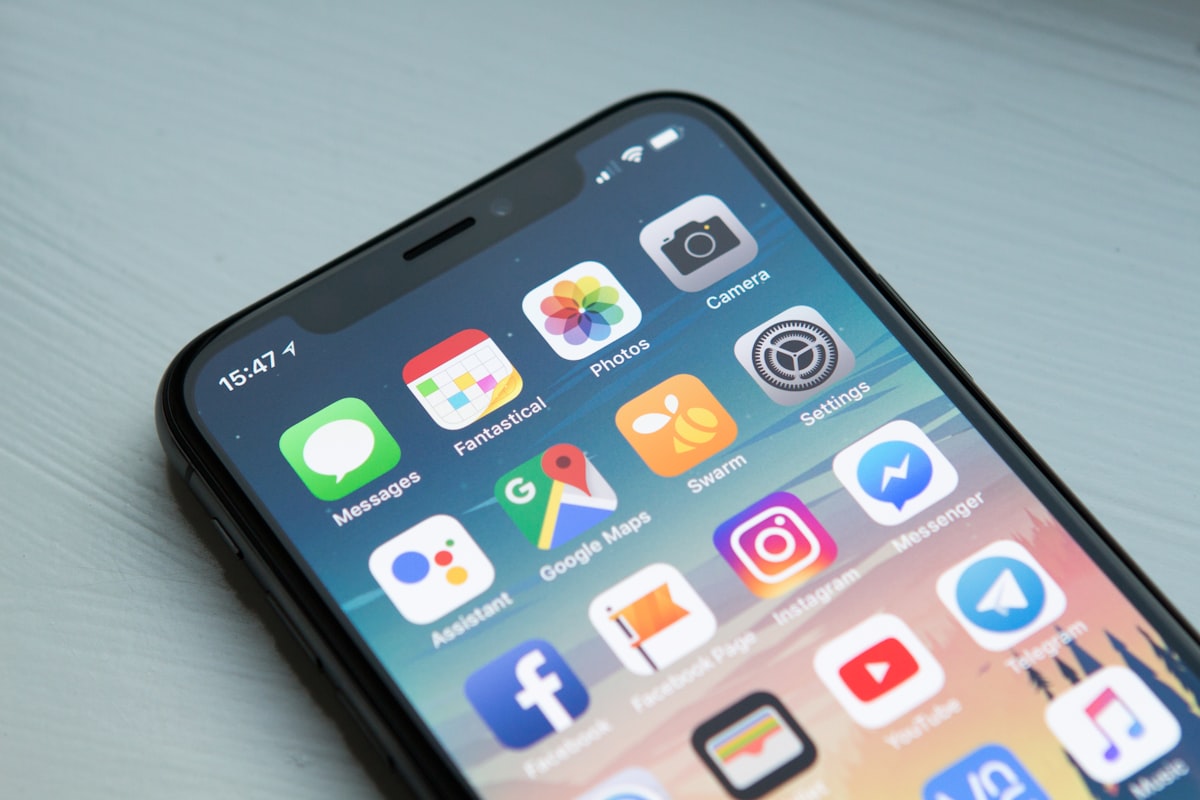
Why Remote Desktop Access from Your Phone Matters
The modern professional is no longer tethered to a single workstation. Whether you are traveling for business, working from a café, or simply away from your desk, the ability to access your desktop from your phone has become essential. Remote desktop applications bridge the gap between mobility and productivity, allowing you to run full desktop applications, access files, and manage your workstation from the palm of your hand.
The demand for mobile-to-desktop connectivity has surged in recent years. According to industry research, over 60% of IT professionals now use some form of remote desktop access on a weekly basis. The question is no longer whether you need remote access — it is which application delivers the best experience.
What to Look for in a Remote Desktop App
Before diving into specific applications, it is important to understand the criteria that separate excellent remote desktop tools from mediocre ones.
Security and Encryption
Security should be your primary concern. Any remote desktop application you use must employ end-to-end encryption — ideally AES-256 — to protect your sessions from interception. Look for applications that support two-factor authentication and do not store your credentials on third-party servers.
Latency and Performance
A remote desktop connection is only useful if it feels responsive. The best applications use adaptive streaming technologies that adjust video quality based on your network conditions. This means you get smooth performance whether you are on Wi-Fi or cellular data.
Cross-Platform Support
Your remote desktop app should work across operating systems. If your desktop runs Windows but you use an iPhone, the app must handle that seamlessly. The same applies to macOS and Linux desktops paired with Android phones.
Ease of Setup
Complex configuration is the enemy of adoption. The best remote desktop apps require minimal setup — install the client, create an account, and connect. No port forwarding, no firewall rules, no DNS configuration.
Top Remote Desktop Applications
1. Desk2Me
Desk2Me stands out as a purpose-built solution for personal and professional remote desktop access. Designed with simplicity at its core, Desk2Me eliminates the technical barriers that plague traditional remote desktop solutions.
Key strengths:
- Zero-configuration setup — install and connect in under two minutes
- End-to-end AES-256 encryption for every session
- WebRTC-based peer-to-peer connections for ultra-low latency
- Native support for Windows, macOS, and Linux
- Adaptive streaming that adjusts to your network conditions
- 24/7 support via live chat and email
Pricing: $5.99/month or $49.99/year — with full feature access on every plan. No feature gates, no hidden costs.
What makes Desk2Me particularly compelling is its focus on the user experience. Unlike enterprise-focused tools that overwhelm with configuration options, Desk2Me is designed for people who simply want to access their computer remotely without friction.
2. Chrome Remote Desktop
Google's Chrome Remote Desktop is a free option that works through the Chrome browser. It is straightforward to set up and works across platforms.
Considerations:
- Free but limited in features
- Requires Chrome browser on both ends
- No file transfer capability
- Performance can vary significantly
- Limited support options
Chrome Remote Desktop is suitable for occasional use, but professionals who rely on remote access daily will quickly encounter its limitations.
3. Microsoft Remote Desktop
Microsoft's official Remote Desktop client is deeply integrated into Windows Professional and Enterprise editions. It uses the RDP protocol, which is mature and well-optimized.
Considerations:
- Requires Windows Professional or higher on the host
- Complex setup involving network configuration
- Excellent performance on local networks
- Limited mobile experience
- No native macOS or Linux host support
For organizations already invested in the Microsoft ecosystem, this can be a viable option — but the setup complexity and Windows-only host requirement limit its appeal.
4. AnyDesk
AnyDesk uses a proprietary codec called DeskRT for video compression, which delivers solid performance even on slower connections.
Considerations:
- Good performance on low-bandwidth connections
- Cross-platform support
- Free tier available for personal use
- Can feel cluttered with options
- Enterprise pricing can be steep
5. TeamViewer
TeamViewer is one of the most recognized names in remote desktop software. It offers a comprehensive feature set that covers remote access, file transfer, and even remote support.
Considerations:
- Feature-rich but complex interface
- Expensive for commercial use
- Frequent license verification prompts on free tier
- Strong cross-platform support
- Well-established security track record
Security Comparison
When comparing remote desktop applications, security architecture is the most critical factor. Here is how the top options compare:
| Feature | Desk2Me | Chrome RD | MS RDP | AnyDesk | TeamViewer | |---------|---------|-----------|--------|---------|------------| | End-to-End Encryption | ✓ AES-256 | ✓ | ✓ | ✓ | ✓ | | 2FA Support | ✓ | ✓ | ✓ | ✓ | ✓ | | P2P Connection | ✓ WebRTC | ✗ | ✗ | ✓ | ✗ | | Zero-Trust Architecture | ✓ | ✗ | ✗ | ✗ | ✗ | | No Server Storage | ✓ | ✗ | ✗ | ✗ | ✗ |
The peer-to-peer architecture used by Desk2Me is particularly important from a security perspective. Because your data never passes through a central server, there is no single point of vulnerability that an attacker could target.
Performance on Mobile
Mobile performance is where many remote desktop applications fall short. Small screens, touch interfaces, and variable network conditions create unique challenges.
The most effective mobile remote desktop apps implement these optimizations:
- Adaptive resolution scaling — automatically reducing the remote display resolution to match your phone's screen
- Touch gesture mapping — translating pinch, swipe, and tap gestures into mouse and keyboard inputs
- Bandwidth-aware streaming — reducing frame rate and color depth on slower connections while maintaining usability
- Session persistence — automatically reconnecting when you switch between Wi-Fi and cellular data
Desk2Me excels in all four areas, thanks to its WebRTC foundation which was designed specifically for real-time communication over variable networks.
Setting Up Remote Access: A Quick Guide
Regardless of which application you choose, the general setup process follows these steps:
- Install the host application on the desktop you want to access remotely
- Create an account with the service provider
- Configure access permissions — which devices can connect, authentication requirements
- Install the mobile app on your phone
- Connect using your account credentials
With Desk2Me, this process is streamlined to three steps: create an account, install the desktop client, and connect from any browser. No mobile app installation is even required — you can access your desktop directly from your phone's browser.
Making Your Decision
The right remote desktop application depends on your specific needs:
- For simplicity and security: Desk2Me offers the cleanest setup experience with enterprise-grade encryption
- For budget-conscious occasional use: Chrome Remote Desktop is free and functional
- For Windows-centric enterprise environments: Microsoft Remote Desktop integrates well with existing infrastructure
- For low-bandwidth situations: AnyDesk's DeskRT codec performs well on slow connections
- For comprehensive IT support: TeamViewer's feature set covers remote support scenarios
For most individuals and small teams who want reliable, secure, and frictionless remote desktop access, Desk2Me represents the best balance of simplicity, security, and value at $5.99/month.
Conclusion
Remote desktop access from your phone is no longer a luxury — it is a necessity for anyone who values flexibility and productivity. The applications available today are more capable, more secure, and easier to use than ever before.
The key is choosing a solution that matches your priorities. If security and simplicity are at the top of your list, start with Desk2Me and experience what modern remote desktop access should feel like.
Ready to Try Desk2Me?
Access your desktop from anywhere. Secure, fast, and simple. Start your free trial today.
Get Started FreeContinue Reading
How to Connect to Your Home Desktop Remotely
A comprehensive guide to setting up secure remote access to your home computer. Learn the best methods, security practices, and step-by-step instructions.
Read articleIs Connecting to Your Home Desktop from Mobile Safe?
Security concerns about remote desktop access are valid. Learn how modern encryption, authentication, and architecture protect your connection — and what to look for.
Read article